Real-time occupancy monitoring, gate access logging, and emergency operations interface
This interface governs how security personnel monitor active visitors, enforce access restrictions, log gate events, initiate emergency rollcalls, and document security incidents.

Components of the Security Desk interface
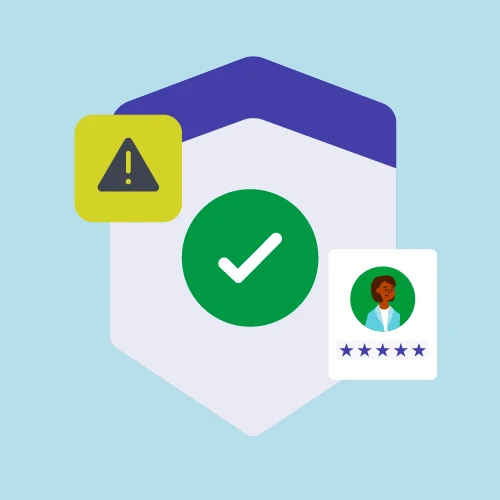
Live Occupancy Board
Real-time count of all visitors currently checked in, segmented by visitor type and floor/zone.

Gate Access Log
Chronological log of all gate check-in, check-out, and access-denied events with timestamps.
Blacklist Management
Add, remove, and review blacklisted individuals — flagged on check-in attempt across all entry points.

Emergency Rollcall
One-click mustering list of all active visitors with real-time accounted-for status tracking.

Incident Log
Structured incident reports with severity classification, photo attachment, and resolution tracking.
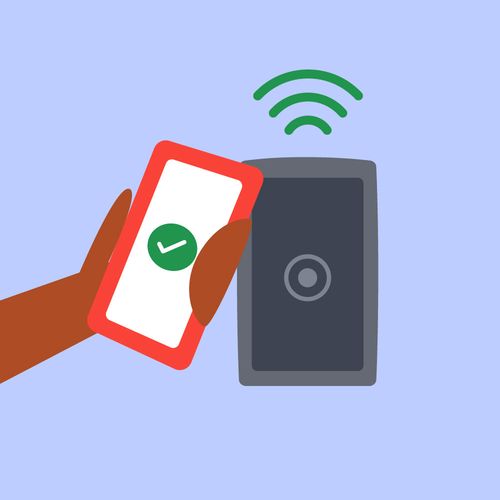
Manual Gate Override
Security staff can manually admit or deny a visitor at any gate point, logged with officer identity.
What the Security Desk controls
Occupancy & Gate
Monitoring- Live occupancy count by visitor type, zone, and floor
- Full gate event log: entry, exit, and access-denied events
- Filter gate log by time range, visitor type, or officer
- View visitor badge photo and details on any active record
- Receive real-time blacklist match alerts from any entry point
Access Enforcement
Control- Add individuals to the org blacklist with name, ID, and reason
- Remove or suspend blacklist entries with audit trail
- Manually override gate access (admit or deny) with officer log
- Escalate a flagged visitor to a supervisor with one action
- View complete entry and exit history for any individual visitor
Emergency & Incidents
Safety- Initiate live emergency rollcall — generates instant mustering list
- Mark visitors as 'accounted for' during active rollcall from any device
- Activate Fire Drill Mode without creating a compliance event
- Log incidents with type, severity, location, photos, and resolution notes
- View all open incidents and their current resolution status
Detail view of Security Desk interfaces

Live Occupancy Board
Displays a real-time occupancy count refreshed via WebSocket. Breakdown by visitor type (walk-in, contractor, VIP) and by physical zone or floor if location zones are configured. Threshold alerts trigger when a zone exceeds its configured capacity.
Zone configuration
Gate Access Log
Chronological event stream showing every gate interaction: badge scan, QR code read, manual override, or access denial. Each row is searchable by visitor name, badge ID, gate point, or officer name.
Gate log export
Emergency Rollcall
Activated from the Security Desk in one click. Generates an instant mustering list showing every visitor currently checked in at the location. Security staff tap each visitor row to mark them as accounted for — the list updates live across all connected devices.
Emergency rollcall setupBlacklist Management
Admins and Security Officers can add individuals to the blacklist with a name, optional document ID, photo, and reason. On any future check-in attempt, the system cross-references this list and pauses the flow, alerting the Security Desk immediately.
Blacklist configurationIncident Log
Security staff create structured incident reports with: incident type, severity (Low / Medium / High / Critical), affected zone, description, photo evidence, and resolution status. Open incidents appear at the top of the Security Desk home view.
Incident reporting docsManual Gate Override
Allows a security officer to manually admit or deny a visitor at any configured gate point. The override is logged with the officer's identity, timestamp, reason, and visitor record — visible in the gate log and compliance audit trail.
Override audit trailSecurity Desk permission scope
| Role / Portal | View live occupancy | View gate log | Add to blacklist | Remove from blacklist | Manual gate override | Initiate rollcall | Mark accounted for | Log incidents |
|---|---|---|---|---|---|---|---|---|
| Receptionist | ||||||||
| Security Officer | ||||||||
| Security Supervisor | ||||||||
| Operations Manager | ||||||||
| IT Administrator | ||||||||
| Super Admin |
Setting up the Security Desk
- 1
Assign Security Officer and Supervisor roles
In the IT Admin Console, assign the Security Officer role to all front-line security staff. If a supervisor tier is required, create a custom role with blacklist-removal and full rollcall permissions. Assign it to shift supervisors.
- 2
Configure location zones (optional)
If your facility has multiple zones or floors, define them under Settings → Locations → Zones. Assign each entry gate to a zone. The occupancy board will then show a per-zone breakdown rather than a single total.
- 3
Set occupancy capacity thresholds
For each zone, configure a maximum capacity value. When occupancy reaches or exceeds the threshold, a visual alert appears on the occupancy board and an optional notification fires to the Security Desk.
- 4
Configure blacklist match notifications
In Custom Workflows → Triggers, set up the 'Blacklist Match' event. Assign the notification to go to the Security Desk queue and optionally to a security supervisor's mobile number via SMS.
- 5
Test the emergency rollcall flow
Use Fire Drill Mode to run a full rollcall test without creating a compliance event. Confirm that the mustering list appears on all connected Security Desk devices within 10 seconds of activation. Verify that 'accounted for' status syncs in real-time.
Connected access control and safety systems
Genetec Security Center
Bidirectional gate event sync — kaarobaarmeet.ai visitor records linked to Genetec access logs.
Lenel OnGuard
Access control event feed to kaarobaarmeet.ai gate log via API bridge.
Axis Camera System
Camera feed metadata linked to gate events for post-incident review.
PagerDuty
Route critical security incidents and rollcall activations to on-call schedules.
Splunk SIEM
Stream gate events and blacklist match alerts to Splunk indexes for correlation.
Twilio SMS
Immediate SMS alerts to security supervisors on blacklist match or incident creation.
Slack
Post security alerts and incident summaries to a designated security Slack channel.
REST API
Programmatic gate event query, blacklist management, and incident creation via API v2.
Security Desk system requirements
Device & Display
- Supported browsers
- Chrome 90+, Edge 90+, Safari 15+, Firefox 90+
- Minimum resolution
- 1280 × 720px
- Recommended resolution
- 1920 × 1080px or larger
- Multi-display support
- Browser multi-tab — one gate, one occupancy
- Mobile / tablet access
- Supported for rollcall mustering (responsive)
Real-Time Operations
- Occupancy sync method
- WebSocket (real-time)
- Gate log refresh
- Real-time push
- Rollcall activation latency
- < 10 seconds to all devices
- Blacklist check latency
- < 1 second per check-in
- Concurrent Security Desk sessions
- Unlimited per location
Data
- Gate log retention
- Follows org data retention policy
- Incident report retention
- 5 years (configurable)
- Blacklist record limit
- Unlimited
- Rollcall compliance event retention
- Permanent
- Offline mode
- Not supported — active connection required
Frequently Asked
Questions
Couldn't find what you were looking for?
KaarobaarMeet.ai is a full-stack digital ecosystem OS designed for modern Indian business infrastructure. It powers every touchpoint of visitor check-in, multi-room event scheduling, and enterprise facility operations — replacing physical logbooks with self-service kiosks, encrypted QR passes, instant WhatsApp host alerts, and real-time operations dashboards.
The platform includes 24 modular micro-apps covering Visitor Management, Event Automation, Smart Parking, Smart Badges & Wristbands, Member Directories, Startup Trackers, and Live Command Centers — all accessible under a unified tenant and single sign-on.
Yes. KaarobaarMeet.ai provides an enterprise multi-tenant hierarchy with 13 role-based portals. Corporate headquarters get unified analytics across all cities and branches, while individual security gates, reception desks, and event coordinators operate dedicated local interfaces.
Any standard iPad, Android tablet, touchscreen kiosk terminal, or desktop computer. For physical passes, the system integrates seamlessly with standard thermal printers (Zebra, Brother, TSC) via USB, Bluetooth, or local network.
Pre-registered visitors receive an encrypted QR entry pass directly on WhatsApp prior to arrival. When they arrive and scan in at the reception kiosk or gate, the system alerts the host on WhatsApp instantly with the visitor's photo, designation, and company name.
Related platform interfaces
Review the Security Desk configuration guide
Download the security operations setup reference or connect with a solutions architect to scope your access control and emergency procedures.